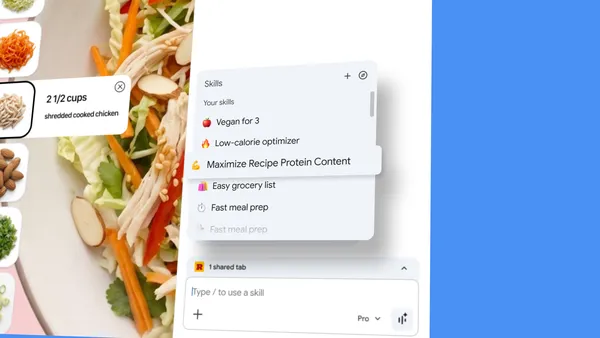

I’ve been using AI in Chrome for a while now, and the biggest pain point has always been repetition. You find a prompt that works great — say, asking for ingredient substitutions to make a recipe vegan — and then you have to type it out again on every single page. It’s tedious, and honestly, it kills the flow.
Google just announced a fix for that. It’s called Skills, and it’s rolling out to Gemini in Chrome on desktop starting today.
What actually is a Skill?
A Skill is basically a saved prompt. You write something once, save it, and then you can run it on any page with a single click or a keyboard shortcut. Type forward slash (/) or click the plus sign (+) in the Gemini chat, pick your Skill, and it runs on whatever page you’re looking at. You can even select multiple tabs if you want it to work across several pages at once.
Early testers have been using Skills for all sorts of things:
- Health & wellness: calculating protein macros for any recipe they’re viewing
- Shopping: comparing specs across multiple product tabs side-by-side
- Productivity: scanning lengthy documents for key information without reading the whole thing
These are the kind of tasks where you’d normally have to copy-paste your prompt or rephrase it each time. Skills just skip that step entirely.
There’s a library of pre-made ones too
Google also launched a Skills library with ready-to-use prompts for common tasks. Want to break down the ingredients of a product you’re looking at? There’s a Skill for that. Need to pick a gift by cross-referencing your budget with the recipient’s interests? There’s a Skill for that too.
You can grab one from the library, try it out, and if it’s not quite right, you can edit it. The prompt is fully customizable, so you can tweak it to match your specific needs.
Privacy and control
Skills use the same safeguards as regular prompts in Gemini in Chrome. That means if a Skill tries to do something like add an event to your calendar or send an email, it’ll ask for confirmation first. Google also mentioned automated red-teaming and auto-update capabilities, which is their way of saying they’re testing for vulnerabilities and keeping things patched.
Your saved Skills are synced across any signed-in Chrome desktop device, and you can manage them by typing forward slash and clicking the compass icon.
My take
This is one of those features that sounds small but makes a real difference if you use AI regularly. The friction of re-typing prompts is something I’ve just accepted, but now I don’t have to. The library is a nice bonus — I’m curious to see what the community comes up with, because the real value will be in the creative prompts people build and share.
It’s rolling out now, so if you don’t see it yet, give it a day or two.
Comments (0)
Login Log in to comment.
Be the first to comment!